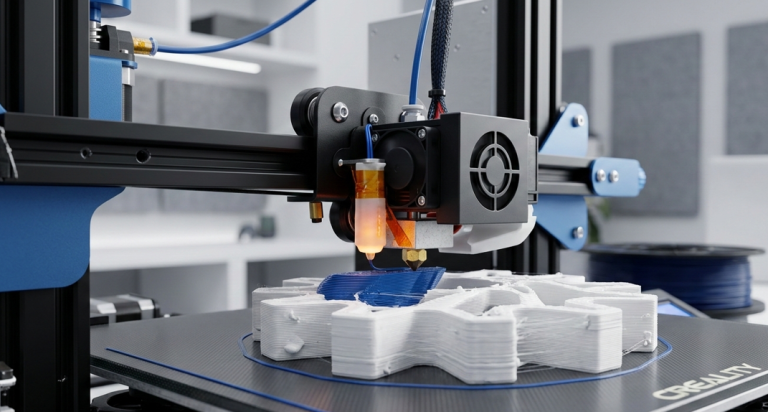
How to Get Started with Creality Print? Your Ultimate Quick Start Guide
Creality Print is a self-developed FDM (Fused Deposition Modeling) slicing software by Shenzhen Creality 3D Technology Co., Ltd. The software offers a user-friendly and efficient interface that allows users to control and monitor 3D printers remotely while enabling direct printing from a computer. Whether you’re a beginner or an experienced 3D printing enthusiast, Creality Print…
Creality Print is a self-developed FDM (Fused Deposition Modeling) slicing software by Shenzhen Creality 3D Technology Co., Ltd. The software offers a user-friendly and efficient interface that allows users to control and monitor 3D printers remotely while enabling direct printing from a computer. Whether you’re a beginner or an experienced 3D printing enthusiast, Creality Print simplifies the slicing process and ensures smoother prints. Here’s a step-by-step guide to getting started with Creality Print.
Step 1: System Requirements For Creality Software Installation
Before diving into Creality Print, ensure your system meets the required specifications for optimal performance.
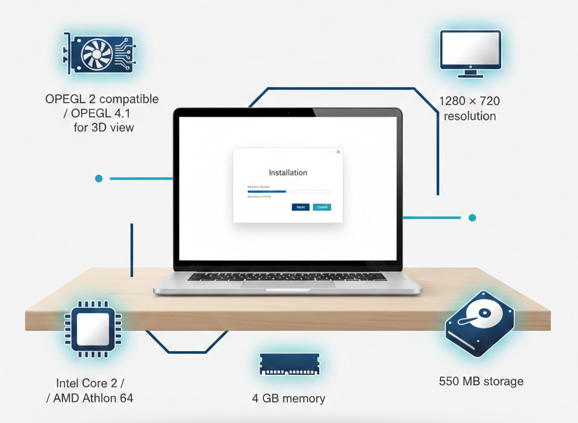
Minimum System Requirements:
- Graphics Card: OpenGL 2 compatible (OpenGL 4.1 required for 3D layer view)
- Display Resolution: 1280 x 720
- Processor: Intel Core 2 or AMD Athlon 64
- Storage: 550 MB available hard drive space
- RAM: 4GB memory
Recommended System Requirements:
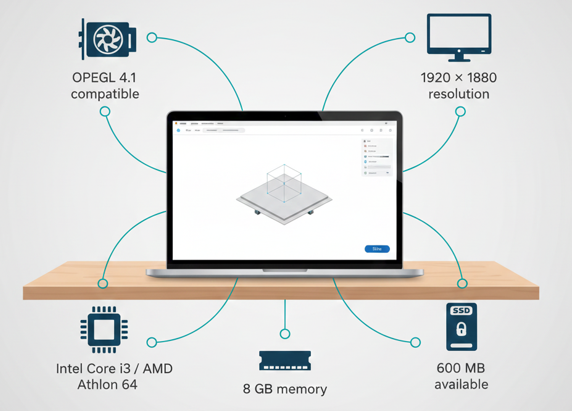
- Graphics Card: OpenGL 4.1 compatible for 3D layer view
- Display Resolution: 1920 x 1080
- Processor: Intel Core i3 or AMD Athlon 64
- Storage: 600 MB available hard drive space
- RAM: 8GB memory
Important Notes:
- Creality Print is a 64-bit application, making it incompatible with 32-bit systems.
- Supported operating systems include Windows 7 and Mac OS 10.14 or later versions.
Step 2: Download and Installation
How to Download Creality Print:
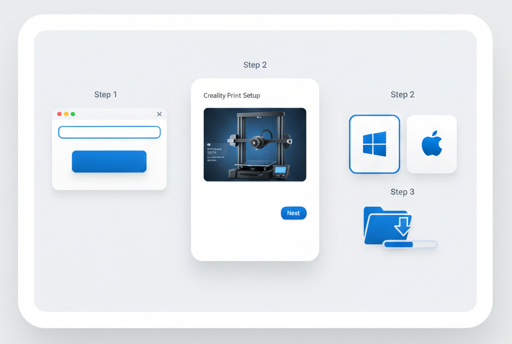
- Visit www.thecrealityslicer.com to download the software: Download Creality Print.
- Select your operating system (Windows or Mac).
- Download the installation file and save it to your device.
Installation Process:
Follow the on-screen instructions to install Creality Print:
- Run the downloaded installer.
- Follow the prompts to complete the installation process.
Once installed, launch the software and prepare for your first 3D print.
Step 3: First-Time Opening the Software
When you first open Creality Print, you’ll need to set up a few basic preferences:
Select Language and Locale
Choose your preferred language and locale to ensure the software operates in your desired region.
Printer Selection
You’ll be prompted to select your 3D printer and nozzles. Ensure that you select at least one printer from the list to proceed.
Step 4: Start Your First Print
Now, you are ready to slice and print your first 3D model.
Open a Project or Import a Model:
- Open Project: Click the “File” dropdown and select Open Project to load projects in 3mf or cxprj formats.
- Import Model: Click the Import Model button on the toolbar during the preparation phase to load stl, obj, stp, or other supported formats.
You can import multiple models at once, but only one project can be open at a time.
Select Printer, Filament, and Process Presets:
Before slicing your model, select the following settings:
- Printer: Choose the appropriate printer and nozzle from the dropdown list.
- Filament: Select the filament you plan to use.
- Process Preset: Select the desired layer height for the model. A layer height of 0.20 mm is standard for most models using a 0.4mm nozzle, though smaller layers will provide more detail but require longer print times.
Click the Slice button to generate the .gcode file. This is the file format used by 3D printers to execute the print.
Slice the Model
Once sliced, Creality Print will switch to the Preview pane, allowing you to review the sliced model before printing. The left side of the preview screen will display printing times and other relevant details.
Step 5: Sending Print Jobs
You can send your print tasks via either LAN or SD Card. Here’s how:
Sending via LAN:
- Click the LAN Print option at the bottom right.
- A preview window will appear, allowing you to select your printer from the dropdown menu.
- After selecting, click One-click Print to send the file directly to the printer.
Sending via SD Card:
- Click the downward arrow next to LAN Print and select Export to Local.
- A file management window will pop up, where you can choose the SD card location to save the file.
- Insert the SD card into the 3D printer’s SD card slot.
- Navigate to the USB drive option in the printer’s menu to find and select your file.
Step 6: Remote Control and Monitoring
Creality Print also allows you to control and monitor your 3D printer remotely, which is a fantastic feature for long or complex prints.
Remote Monitoring
Switch the slicer to the Device pane to view the status of your print in real-time. If your printer has a camera, you can also watch a live feed of the printing process remotely, ensuring you’re always in control.
Final Thoughts
Creality Print is an essential tool for Creality 3D printer owners, offering an intuitive interface for slicing, controlling, and monitoring prints. With its compatibility with a wide range of 3D models, user-friendly features, and remote printing capabilities, Creality Print makes 3D printing simpler and more efficient. Whether you’re a hobbyist or a professional, this software can help streamline your 3D printing workflow from start to finish.
By following this guide, you’ll be able to set up Creality Print and begin your 3D printing journey with ease.

I share practical insights on the latest 3D-printing software and hardware, helping makers navigate tools and technologies with confidence. My goal is to make digital fabrication simple and accessible for everyone.