Why is Creality Slicer Crashing? Troubleshooting Guide
Creality Slicer, also known as Creality Print, has become a widely used tool for 3D printing enthusiasts, particularly those using Creality printers. However, one of the most common frustrations among users is why Creality Slicer crashing unexpectedly. This can happen at various stages, while opening the software, during the slicing process, or even when trying…
Creality Slicer, also known as Creality Print, has become a widely used tool for 3D printing enthusiasts, particularly those using Creality printers. However, one of the most common frustrations among users is why Creality Slicer crashing unexpectedly. This can happen at various stages, while opening the software, during the slicing process, or even when trying to load a specific model. If you’re dealing with these issues, you’re not alone. Fortunately, there are troubleshooting steps that can help you get back on track.
In this comprehensive guide, we’ll explore the most common reasons why Creality Slicer crashes, step-by-step troubleshooting solutions, and additional tips to improve your 3D printing experience.
Understanding the Causes of Creality Slicer Crashes
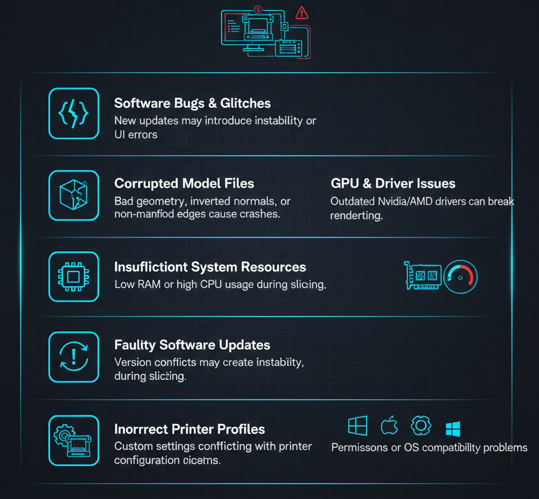
Before diving into troubleshooting, it’s essential to understand what might be causing the crashes. Several factors — including incorrect settings — can contribute to issues with Creality Slicer, similar to issues covered in our 3D slicer settings guide on creality-slicer-settings. Below are the most common reasons:
Software Bugs and Glitches
Creality Slicer, like all software, can have bugs that cause instability. These bugs could range from simple UI issues to more complex problems that crash the entire program. Users have reported that newer versions of Creality Slicer sometimes introduce new bugs that cause it to crash unexpectedly.
Corrupted Model Files
Corrupted files are one of the most common reasons for slicer crashes. Issues with the 3D models, like overlapping faces, inverted normals, or bad mesh geometry, can cause the slicer to freeze or crash. If your slicer crashes when you load a particular model, the issue might lie with the file itself.
Graphics Card and Driver Issues
Creality Slicer uses your computer’s GPU to render 3D models. If your graphics card drivers are outdated or incompatible, the slicer may crash when trying to load or render a model, an issue often seen when slicer settings or hardware drivers conflict — as discussed in our troubleshooting guide for failed prints on 3d-printing-ironing.
This is especially common for users with AMD or Nvidia GPUs, where driver conflicts may occur.
Insufficient System Resources
If your computer doesn’t have enough RAM or processing power, it can lead to crashes during the slicing process. Larger models or complex prints require more system resources, and if your computer is running low on memory or CPU, the slicer may fail to slice your design.
Faulty Software Updates
While updates are generally intended to improve functionality, they can sometimes introduce more bugs or incompatibilities. For example, users of Creality Slicer version 5.x and 6.x have reported increased instability compared to previous versions.
Incorrect Printer Profiles
Sometimes, the slicer will crash because of conflicts between the printer profile and the settings used for slicing. This can happen if you’re using a custom profile or making manual edits that are not fully compatible with your printer or material type.
OS-Specific Issues
Certain operating systems, especially macOS and Linux, may have unique issues when running Creality Slicer. In some cases, permissions or other system-level issues can interfere with the slicer’s functionality.
Comprehensive Troubleshooting Steps
Here’s a step-by-step guide to troubleshoot Creality Slicer crashes. Each of these steps targets a different potential issue, helping you isolate and resolve the problem.
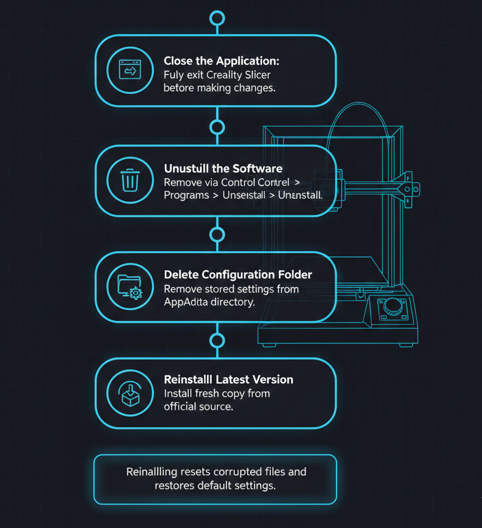
Restart and Reinstall the Software
A clean reinstall can solve many problems related to corrupted files or settings.
Steps:
- Close Creality Slicer completely.
- Uninstall the software. On Windows, go to Control Panel → Programs → Uninstall.
- Delete the configuration folder. This folder contains settings and profiles. For Windows, it’s located in C:\Users\<YourUsername>\AppData\Roaming\Creality\Slicer.
- Reboot your computer.
- Download and install the latest version from the official website or from a trusted source.
Reinstalling will reset any corrupted or incorrect settings that could be causing the crashes.
Roll Back to a Stable Version
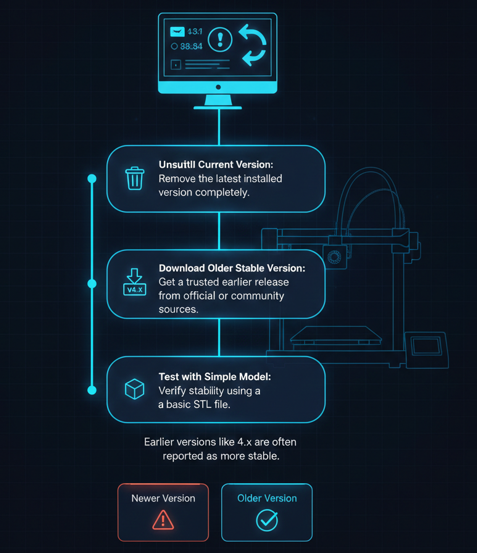
If the issue started after an update, consider reverting to a previous stable version.
Steps:
- Uninstall the latest version of Creality Slicer.
- Download an older version of Creality Slicer from trusted sources or use the link provided on community forums for stable versions.
- Test the slicer with a simpler model.
Users have reported that Creality Slicer 4.0 and earlier versions are more stable.
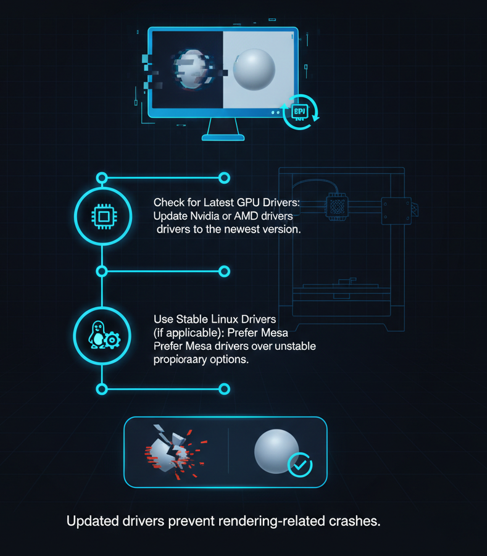
Update Your Graphics Drivers
Outdated or incompatible graphics card drivers can cause rendering issues that lead to crashes.
Steps:
- Check for the latest driver updates for your graphics card (Nvidia or AMD).
- If you’re on Linux, ensure that you are using Mesa drivers instead of proprietary drivers, which sometimes cause instability.
- Restart your computer after updating the drivers.
This can solve rendering-related crashes when loading 3D models.
Verify and Repair Model Files
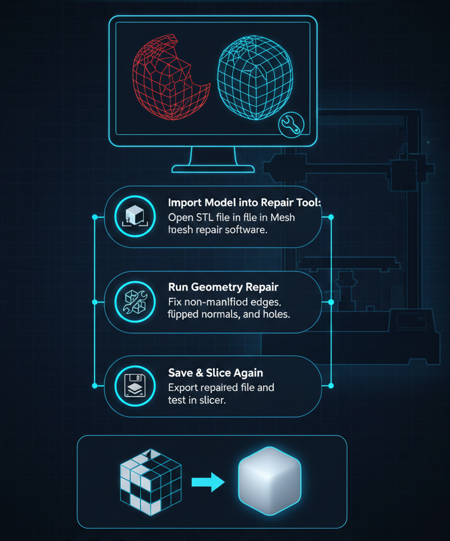
Use online tools like Meshmixer or Netfabb to verify and repair your STL files.
Steps:
- Import the model into Meshmixer or Netfabb.
- Run the repair tool to fix any geometry issues like non-manifold edges, flipped normals, or holes.
- Save the repaired file and try slicing it again.
This will ensure that the issue isn’t related to bad geometry in your STL files.
Reset Printer Profiles to Default
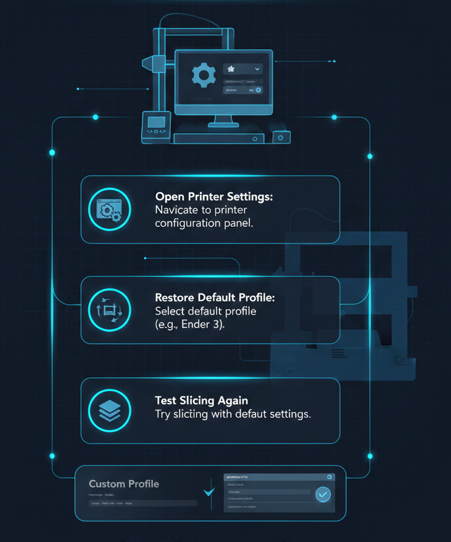
If you have customized your printer profiles, try reverting to the default Creality profiles.
Steps:
- Open the Creality Slicer and go to the printer settings.
- Restore default printer profiles for your specific model (e.g., Ender 3).
- Try slicing again.
Many users have resolved issues by returning to the default profiles and then tweaking only essential settings.
Check System Resources (RAM/CPU)
Creality Slicer may crash if your system is running low on resources while processing complex models.
Steps:
- Close unnecessary applications to free up system resources.
- Check your Task Manager (Windows) or System Monitor (Linux/macOS) to see if any background apps are using too much CPU or RAM.
- If you’re slicing a large model, try splitting it into smaller parts and slicing them separately.
Test on Another Computer
If you’ve followed all the steps above and the issue persists, try installing Creality Slicer on another computer to determine if the issue is specific to your machine.
Advanced Solutions for Persistent Issues
If none of the basic troubleshooting steps solve the problem, you can try these advanced solutions.
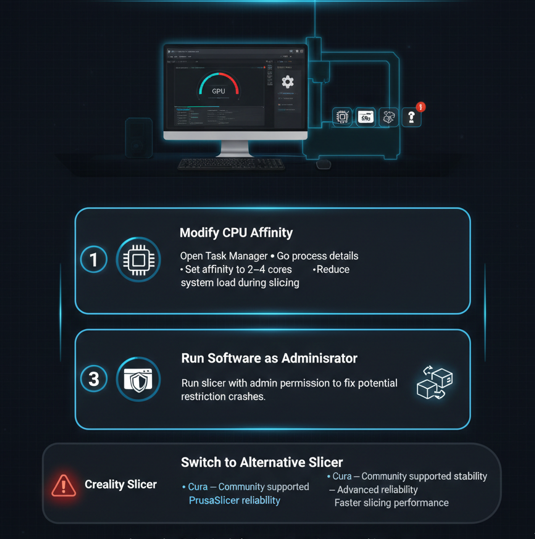
Modify System Configurations (CPU Affinity)
In some rare cases, adjusting CPU affinity on Windows can prevent crashes during slicing.
Steps:
- Open Task Manager (Ctrl + Shift + Esc).
- Right-click Creality Slicer in the Processes tab and select Go to details.
- Right-click the process again and select Set affinity.
- Try limiting the process to 2 or 4 CPU cores and see if this resolves the issue.
This solution can help in cases where system load is too high for Creality Slicer to handle.
Run Slicer as Administrator
On Windows, sometimes software crashes due to permissions issues. Running Creality Slicer with administrator privileges can resolve these issues.
Steps:
- Right-click on the Creality Slicer shortcut.
- Select Run as Administrator.
Switch to an Alternative Slicer
If Creality Slicer continues to crash after trying all these steps, consider switching to an alternative slicer:
- Cura — A free slicer with extensive community support.
- PrusaSlicer — Known for its reliability and advanced features.
- OrcaSlicer — A great alternative for Creality users, offering stability and faster slicing.
Preventive Measures to Avoid Future Crashes
Here’re some additional tips to ensure Creality Slicer remains stable:
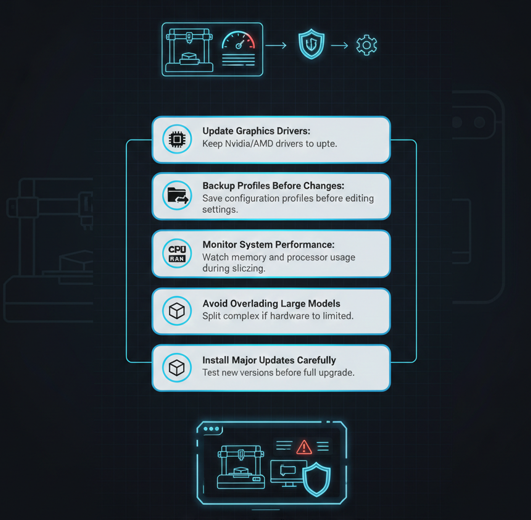
- Regularly update your graphics card drivers.
- Back up profiles before making any changes.
- Monitor system performance (e.g., CPU and RAM usage) during slicing.
- Don’t overload the slicer with large, complex models unless your computer is equipped to handle them.
- Perform regular software updates, but be cautious of major updates that might introduce new bugs.
When to Contact Creality Support?
If all else fails, it’s time to contact Creality Support or post your issue on Creality’s official forums. Be sure to include:
- Screenshots of the error messages.
- Details of the steps that lead to the crash.
- Information about your computer’s specs (OS, CPU, RAM, GPU).
- Any other troubleshooting steps you’ve tried.
By providing detailed information, you’ll help the support team troubleshoot your issue more effectively.
Final Thoughts
Creality Slicer crashing can be frustrating, but it’s typically fixable — and if you want a broader overview of 3D printing tools, guides, and tips, check out at thecrealityslicer for more curated resources and articles.
. By following the troubleshooting steps in this guide, you should be able to identify and resolve the issue, whether it’s a software bug, system resource problem, or model corruption. If you continue to experience problems, don’t hesitate to try alternate slicers or reach out to Creality Support.
Why does the Creality Slicer freeze when I try to load a model?
Creality Slicer can freeze due to large or complex 3D models that demand too many system resources. Models with high polygon counts or corrupted geometry may cause the slicer to hang. To fix this, try simplifying your models or repairing them using tools like Meshmixer or Netfabb.
How can I prevent Creality Slicer from crashing after an update?
To prevent crashes after updating, always backup your slicer profiles and settings. Avoid jumping directly to major new versions unless they have been widely tested for stability. If you face issues post-update, consider rolling back to an earlier, stable version of Creality Slicer until a more stable release is available.
Why does Creality Slicer crash on my macOS machine?
On macOS, Creality Slicer may crash due to compatibility issues with certain versions of macOS or graphics drivers. Ensure your macOS and graphics drivers are up to date. Additionally, check if the software has the required permissions to run by navigating to the Security & Privacy settings on your Mac.
Can adding more RAM fix Creality Slicer crashes?
Yes, adding more RAM can help prevent crashes, especially when slicing large models or handling complex prints. If your system runs low on memory during slicing, increasing your computer’s RAM may significantly improve performance and reduce crashes.
Should I use a different slicer if the Creality Slicer keeps crashing?
If Creality Slicer continues to crash despite troubleshooting, trying an alternative slicer like Cura or PrusaSlicer is a good option. These slicers are stable and compatible with Creality printers, and they offer advanced features that may resolve issues you’re facing with Creality Slicer.

I share practical insights on the latest 3D-printing software and hardware, helping makers navigate tools and technologies with confidence. My goal is to make digital fabrication simple and accessible for everyone.